


About bookmarks
There may be occasions when you might want to refer your reader to a specific paragraph within a page on your website for further information.
A bookmark provides a quick hyperlink to exactly the right spot within that page, to see a bookmark in action follow the hyperlink at the end of this sentence and see the date John Keats penned
Ode to Autumn, then take a moment to travel up the page to see the poem above so you can see that you have linked to the middle of the page.
You may want to take a reader further down the same page (follow this link) - on a long page this is very useful.
Clubs might find this useful for taking readers to a news item or a specific report within a webpage.
How to add a bookmark
1. Taking your reader to a point on another page on your website
To add a bookmark, go to the webpage you wish to direct your reader to, then go to the point in the text that you want your reader to start reading from and highlight the text, now click on the anchor icon (middle of top row of the control panel). Type a brief description word (I recommend just one word - don't use any punctuation such as apostrophes, hyphens, etc) and then click OK. This word is your bookmark reference. In my example I used the word date.
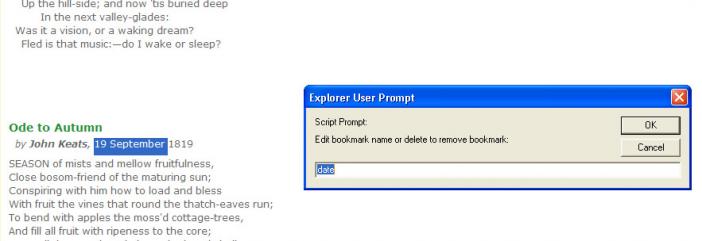
Once you have clicked on OK, save the page.
Now go to the top of the page and highlight the webaddress, in this case
http://www.club-sites.co.uk/newsletters/september2009/aboutbookmarks.html
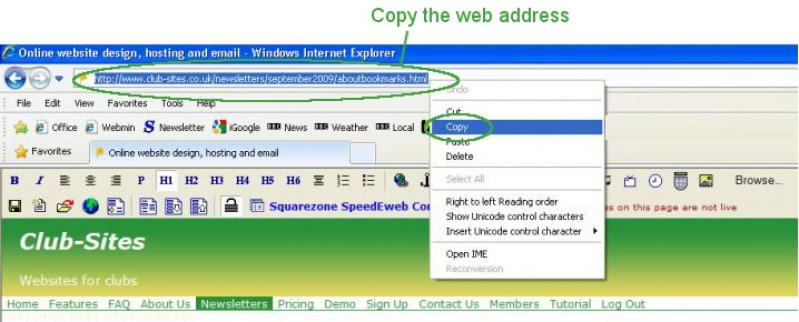
Next go to the page you want to start from.
Highlight the text you wish to use as the start point.
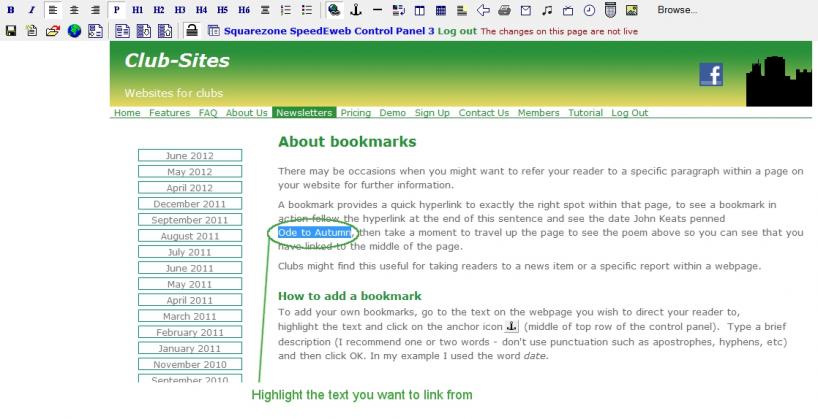
Click on the hyperlink icon and delete the http:// information in the URL box:
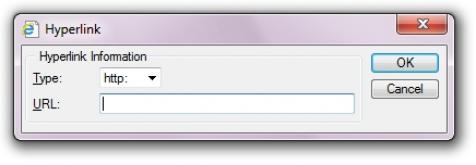
Now paste in the address you copied earlier:
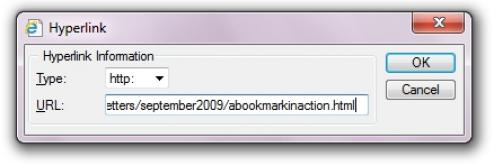
Next, take your cursor to the end of the address in the URL box and type # and then type the bookmark reference:
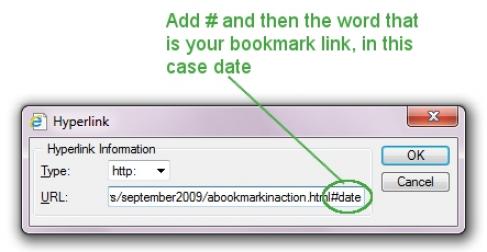
(My bookmark was called date in this example)
Click on OK and finally save the page.
To test the link, lock the page using the padlock icon Edit Off and click on the hyperlink you embedded. When you test the page might find that it appears to miss the landing spot, this is because the control panel is hiding it, go up two lines and you will see you are in the correct place, all will be well when the page is published.
2. Taking your reader to a point further down the same page
Apart from bookmarks to other pages you might want to index a long report, by including an index at the top of the page you can allow readers to jump to various sections, have a look at this example.
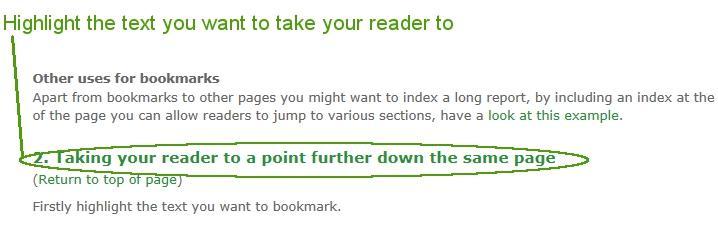
Firstly highlight the text you want to bookmark.
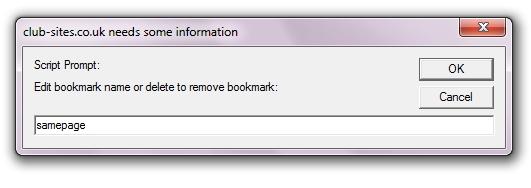
Now go to the start point and hightlight the text you want to link from and click on the hyperlink icon. Delete the text highlighted in blue and just type in the bookmark reference, in this case #samepage and save the page.
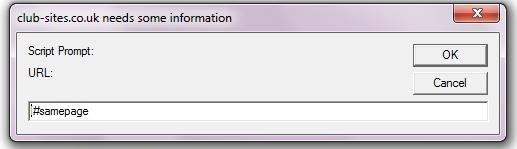
Click on OK. Save the page and check the link.
Important
Only use one word in your book mark ie no spaces, which is why I typed #samepage and not #same page.